
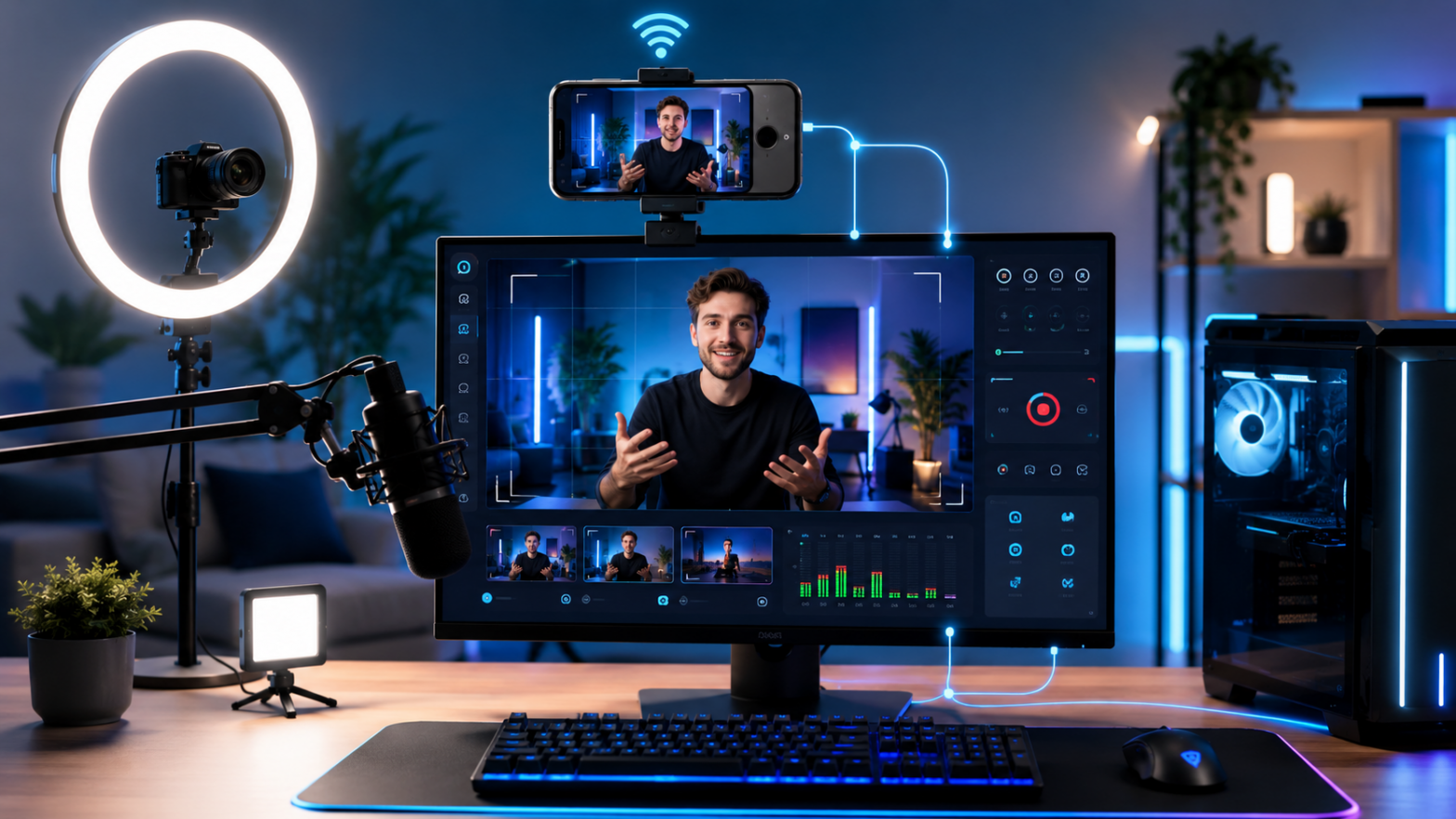
Content creation has a hardware problem. The built-in webcam on most laptops captures video that looks flat, grainy, and unprofessional compared to the phone sitting in your pocket — a device with a sophisticated camera system, optical image stabilization, and the ability to shoot cinema-quality footage. The gap between “what I look like on stream” and “what I could look like with better hardware” has frustrated creators for years.
iVCam, developed by e2eSoft, closes that gap. It transforms your iPhone or Android phone into a full-featured HD webcam for your Windows PC, compatible with every platform and software that uses a standard webcam. For streamers, YouTubers, podcasters, online instructors, and business professionals who want to present their best visual image, iVCam turns a device you already own into a genuine camera upgrade.
This guide is written specifically for content creators. We go beyond basic setup to cover OBS integration, video quality optimization, lighting considerations, advanced camera controls, and the specific configurations that work best for different content creation scenarios.
Why iVCam Outperforms Most Built-in Webcams
To understand iVCam’s advantage, consider what your phone’s camera brings to the equation:
Multi-lens capability: Modern smartphones have wide, standard, and telephoto lenses. iVCam lets you switch between them in real time, giving you framing flexibility that even dedicated webcams at several times the price cannot match.
Large sensor size: Phone camera sensors — while smaller than dedicated cameras — are dramatically larger than the tiny sensors inside laptop webcams. Larger sensors capture more light, producing cleaner images in lower light conditions.
Optical image stabilization: Built into modern phone cameras, OIS keeps the image smooth even if the phone or mount vibrates slightly. This produces a more professional, stable image.
Resolution: iVCam supports up to 4K resolution (on phones capable of it), with 1080p as a reliable default. The majority of built-in laptop webcams max out at 1080p under ideal conditions and often deliver less in practice.
Advanced image processing: The image signal processing (ISP) in modern smartphones — the chip that processes raw camera sensor data into a final image — is extraordinarily sophisticated, tuned through years of consumer photography to produce attractive, well-exposed images.
iVCam version 7.3.5 brings all of this capability to your Windows PC wirelessly (via Wi-Fi) or via USB cable, recognized by the operating system and all streaming/recording software as a standard webcam.
Hardware and Software Requirements
Before setting up, confirm your equipment meets the requirements:
Phone: iPhone or Android smartphone. For best quality, a phone from the last 3–4 years with a high-quality main camera. Older phones with lower camera quality will still outperform most laptop webcams, but newer devices will show the most significant improvement.
PC: Windows 7 SP1 through Windows 11. The iVCam Windows client (version 7.3.5) must be installed on the PC.
Connection: Wi-Fi (both phone and PC on the same network) or USB cable. USB offers zero-latency, but Wi-Fi is more convenient for desk setups.
Mount: While not strictly required, a phone mount that holds your phone at eye level and at a reasonable distance (60–90 cm) from your face will dramatically improve the visual quality of your setup. A flexible clamp mount or dedicated desk phone stand is a worthwhile investment.
Initial Setup for Streaming and Recording
Step 1: Install iVCam on Both Devices
- Download the iVCam PC client (version 7.3.5) from ivcamdownload.com and install it on your Windows PC.
- Install the iVCam app on your phone from the App Store (iOS) or Google Play (Android).
Step 2: Connect Phone and PC
Wi-Fi method: Ensure both devices are on the same Wi-Fi network. Launch the iVCam app on your phone, then open the iVCam PC client. The PC client should detect the phone automatically and establish a connection. The phone’s camera feed will appear in the iVCam PC client window.
USB method: Connect your phone to the PC via USB cable. On iPhone, trust the connection when prompted. The iVCam PC client detects the USB connection and streams video through the cable for zero-latency performance.
Step 3: Verify Detection in Windows
Once iVCam is connected, Windows recognizes the phone as a camera named “e2eSoft iVCam” in the device list. To confirm:
- Open the Windows Camera app.
- In the camera app, switch the input source to “e2eSoft iVCam.”
- You should see your phone’s camera feed.
If the Windows Camera app shows your phone’s feed, every other application — OBS Studio, Streamlabs, Zoom, Teams, Discord, XSplit — will also detect it as an available camera.
Integrating iVCam With OBS Studio
OBS Studio (Open Broadcaster Software) is the standard tool for streaming and recording among serious content creators. iVCam integrates seamlessly:
Adding iVCam as a Video Source in OBS
- Open OBS Studio.
- In the Sources panel, click the + icon.
- Select Video Capture Device.
- Name the source (e.g., “iVCam Phone Camera”) and click OK.
- In the Properties dialog, open the Device dropdown.
- Select e2eSoft iVCam from the list.
- Configure the resolution and frame rate:
- Resolution: Set to 1920×1080 (1080p) for a balance of quality and performance. Set to 3840×2160 (4K) if your PC is capable of handling 4K in your stream/recording pipeline.
- FPS: Set to 30 for standard streaming, 60 for gaming or fast-motion content.
- Click OK.
Your phone’s camera feed now appears in the OBS canvas. Resize and position it as needed within your scene layout.
Configuring for Different Streaming Scenarios
Face cam for gaming streams: Position the iVCam source as a smaller overlay in the corner of the screen, sized to show your face without dominating the game footage. In OBS’s scene, add a Color Key or Chroma Key filter if you are using a green screen behind you.
Podcast/talking head format: Use iVCam as your primary, full-frame video source. Set a clean background, ensure good lighting, and set the phone far enough from your face to include your upper body in frame.
Product demonstrations: iVCam’s ability to switch between lenses (wide for full setup view, telephoto for close detail) makes it ideal for product reviews and tutorial content where showing both context and detail matters.
Audio Routing
iVCam can also route your phone’s microphone audio to the PC. In OBS:
- Add an Audio Input Capture source.
- Select e2eSoft iVCam as the device (this is the phone’s microphone transmitted through iVCam).
However, for most content creators, a dedicated USB or XLR microphone will produce better audio quality than a phone microphone at desk distance. Use the phone’s microphone through iVCam only if you need the phone physically near the subject (for product sounds, for example) or do not have a dedicated microphone available.
Optimizing iVCam Video Quality
The default iVCam settings produce good results, but several adjustments can significantly improve the output for professional content creation.
Resolution and Frame Rate
In the iVCam PC client settings:
- 1920×1080 at 60fps: Ideal for most streaming and recording scenarios. Smooth motion, excellent detail.
- 2560×1440 at 30fps: Good for stationary talking-head content where resolution detail matters more than frame rate smoothness.
- 3840×2160 at 30fps: For recorded video where you want maximum resolution (YouTube 4K, for example). Requires significant PC processing power and a fast Wi-Fi connection or USB cable.
For live streaming, match your iVCam output resolution to your stream output resolution. Streaming at 1080p with a 4K source adds unnecessary encoding overhead without improving the stream quality.
Encoder Settings
iVCam offers hardware encoding options in the PC client:
- Hardware encoder (H.264/H.265): Uses your phone’s GPU for encoding, reducing CPU load. Recommended when streaming, as it minimizes the chance of frame drops.
- Software encoder: CPU-based encoding on the phone. Use only if the hardware encoder produces visible artifacts.
Camera Controls: Exposure, White Balance, and Focus
The iVCam app on your phone provides manual control over key camera parameters that directly affect image quality:
Auto-Exposure (AE) Lock: By default, iVCam uses automatic exposure. For streaming, where lighting conditions remain constant, locking exposure prevents the image from suddenly brightening or darkening when you move or when something crosses the frame. Tap and hold on your face in the iVCam phone app to lock exposure to that area.
Auto-Focus (AF) Lock: Similarly, auto-focus can occasionally hunt and refocus mid-stream, producing a distracting blur. If you remain at a consistent distance from the camera (common for desk setups), lock the focus to your face.
White Balance: Auto white balance can produce color shifts that look inconsistent in recorded footage. Manually set the white balance to match your light source: Daylight (5500K) for natural light, Tungsten (3200K) for warm artificial light, Fluorescent (4000K) for office lighting.
ISO: Lower ISO produces cleaner, less grainy images. In good light, iVCam’s auto ISO keeps it low. In dim conditions, you may need to choose between a higher ISO (grainier image) or adding more light.
Lighting: The Single Biggest Image Quality Factor
No camera setting improvement will matter as much as proper lighting. iVCam’s excellent camera sensor can only work with the light available:
Key light placement: Position a primary light source (a ring light, softbox, or bright LED panel) in front of and slightly above your face, angled toward you. This creates the even, flattering illumination used in professional video production.
Avoid backlight: Do not sit with a window or bright light source behind you. This causes your face to be underexposed (dark) relative to the background. Either close the blinds or move so the window is in front of you or to the side.
Color temperature consistency: If you use multiple light sources (room light plus a dedicated key light), ensure they have matching color temperatures. Mixed warm and cool light sources create unpleasant color casts.
Diffusion: Harsh, undiffused light creates unflattering shadows. A softbox, ring light with a diffuser, or a light bounced off a white ceiling or wall creates softer, more even illumination.
Ring lights: Popular with streamers and vloggers, ring lights create a distinctive circular catchlight in the eyes and provide even, shadow-minimizing illumination. They work particularly well with iVCam when the phone is centered in the ring.
Advanced iVCam Features for Professional Use
Background Effects
iVCam’s built-in background processing includes:
- Blur: Creates a shallow depth-of-field effect similar to portrait mode, blurring the background while keeping your face sharp.
- Bokeh: A more artistic background blur effect.
- Green screen / Virtual background: Replace the background entirely. For best results, use a physical green screen behind you for clean keying; the software-only version works but has edge artifacts.
- Mosaic: Pixelates the background — less common for professional content creation.
For streamers and YouTubers, the background blur and virtual background features can significantly improve the visual professionalism of a home setup where the actual background is not camera-ready.
Multi-Camera Setup
iVCam supports connecting multiple phones to a single PC simultaneously, each appearing as a separate camera source in OBS or other software. This enables:
- Two-camera podcast setup: One phone framing your face, another providing a wide shot showing your desk and setup.
- Product review setups: One camera for your face and reactions, another for close-up product shots.
- Tutorial/demonstration content: A top-down view (phone mounted directly above your work surface) for showing hands-on work, alongside a face cam.
In OBS, each iVCam source appears as a separate Video Capture Device and can be assigned to different scenes.
Using iVCam as a Monitoring Camera
Between streaming sessions, iVCam can serve as a home monitoring camera — watching a room, a sleeping child, or a pet. The PC client shows the live feed and can record locally. This dual-purpose use means the hardware investment in a good phone mount continues to pay off outside of content creation hours.
Troubleshooting for Streamers
Dropped Frames in OBS
If OBS reports dropped frames when using iVCam:
- Switch from Wi-Fi to USB connection (eliminates network as a variable).
- Reduce iVCam’s resolution or frame rate.
- Enable hardware encoding in iVCam settings.
- Ensure your PC is not CPU-limited by closing other applications.
Camera Feed Freezes During Stream
This is almost always a Wi-Fi instability issue. Use USB for live streaming where interruptions are unacceptable. If Wi-Fi is required, ensure the phone and router are in close proximity and on a 5 GHz band with minimal congestion.
Image Looks Washed Out or Over-Exposed
Lock the exposure in the iVCam app (tap and hold on your face). Reduce the brightness/EV compensation in the camera controls.
Phone Overheating During Long Streams
Extended camera use generates heat. Keep the phone out of direct sunlight, remove any phone case that traps heat, and consider a small USB fan positioned near the phone for long streaming sessions.