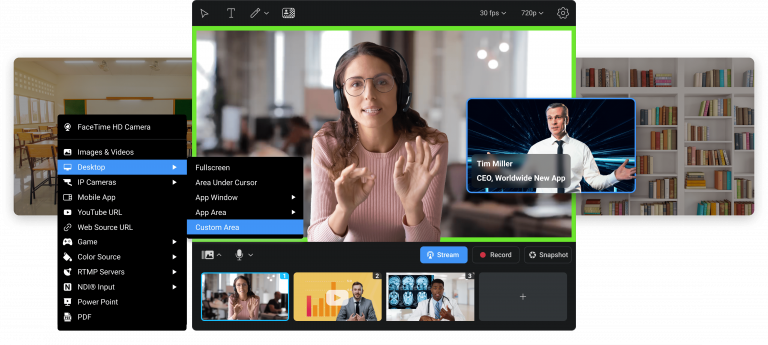
Independent fan site, not affiliated with e2eSoft
iVCam download: use your phone as a webcam
iVCam turns your iPhone, iPad or Android phone into an HD webcam for your Windows PC. Install the PC client, open the app on your phone and the two connect automatically.

PC client
7.4.2
64-bit installer
44.2 MB
32-bit installer
42.1 MB
Phone app
Android, iOS
What is iVCam?
iVCam by e2eSoft turns a phone or tablet into a high-definition webcam for a Windows PC. The picture is usually far better than what a built-in laptop camera or an old USB webcam delivers, and you do not have to buy new hardware.
Windows treats iVCam like any other webcam, so it works in video calls, streams and recordings. People also use it as a baby monitor, pet cam or simple security camera, because the PC client can record the video directly to the computer.
How it works
1. Install the PC client
Download iVCam for Windows from the download page and run the setup.
2. Install the phone app
Get the iVCam app from Google Play or the App Store.
3. Connect
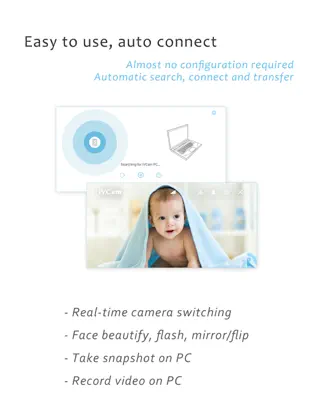
Open both. Over the same Wi-Fi network or a USB cable they find each other automatically.
After that, choose iVCam as the camera in Zoom, Teams or any other program. The First Steps guide shows the setup in detail.
Key features
Sharp, low-latency video
Smooth real-time video with very little delay.
Wi-Fi or USB
Automatic connection either way, without manual setup.
Up to 4K
Video sizes from 360p and 720p up to 1080p, 2K and 4K.
Camera controls
Focus, exposure, ISO, white balance and zoom can be set by hand.
Background effects
Blur, bokeh, mosaic and green screen replace your background.
Phone as microphone
Send the sound of the phone to the PC along with the picture.
Several devices
Connect more than one phone or tablet to the same PC.
All lenses
Switch between front, rear, wide-angle and telephoto camera.
Record on the PC
Preview the video, take photos and record clips in the Windows client.


Free version and license
You can use iVCam without paying. The developer states that the free version includes all features, with two limits: an iVCam watermark on the output video and occasional ads. A license from e2eSoft removes the watermark and the ads.
System requirements
| PC client | Windows 11, Windows 10, Windows 8, Windows 7 SP1 (64-bit and 32-bit) |
| Phone app | Android phones and tablets, iPhone and iPad |
| Connection | Shared Wi-Fi network or USB cable |
Frequently asked questions
Is iVCam free?
Yes, you can use it for free. According to the developer, all features are available in the free version, but the output video carries an iVCam watermark and ads appear from time to time. A paid license removes both.
How do I remove the iVCam watermark?
The watermark belongs to the free version. It disappears when you buy a license from the developer e2eSoft.
Does iVCam work with Android and iPhone?
Yes. The phone app is available for Android in Google Play and for iPhone and iPad in the App Store. The desktop client that receives the video is made for Windows.
Can I connect by USB instead of Wi-Fi?
Yes. iVCam connects over Wi-Fi or over a USB cable. USB is the better choice when your Wi-Fi is weak or the video lags.
Which apps can use iVCam as a camera?
Any Windows program that works with a webcam, for example Zoom, Microsoft Teams, Skype, OBS Studio, Discord, Google Meet and Twitch.
iVCam does not show up or does not connect. What can I do?
Make sure phone and PC are in the same Wi-Fi network or connected by USB, that the firewall allows iVCam, and that both sides run the latest version. Our guide iVCam not showing up as a webcam on Windows goes through the fixes step by step.
Is this the official iVCam website?
No. This is an independent fan site with downloads and guides. It is not affiliated with e2eSoft, the developer of iVCam.
More answers are on the iVCam FAQ page.
Latest guides
- iVCam Not Showing Up as a Webcam on Windows: Step-by-Step Fixes

- iVCam for Content Creators: Using Your Phone as a Professional Webcam for Streaming and Recording in 2026
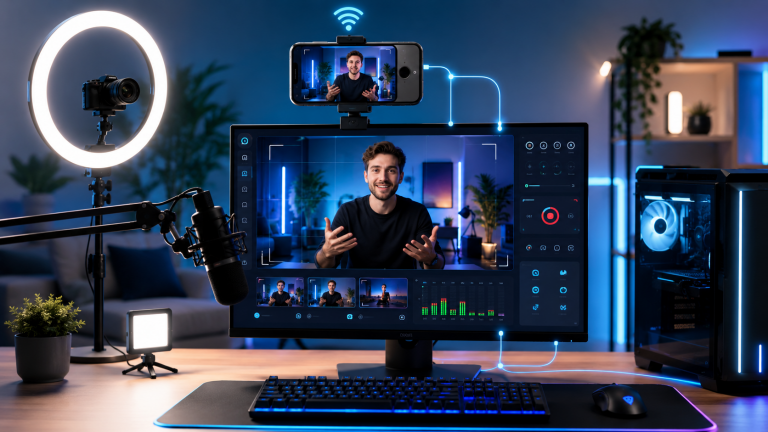
- Tips to Maximize Video Quality with iVCam Settings
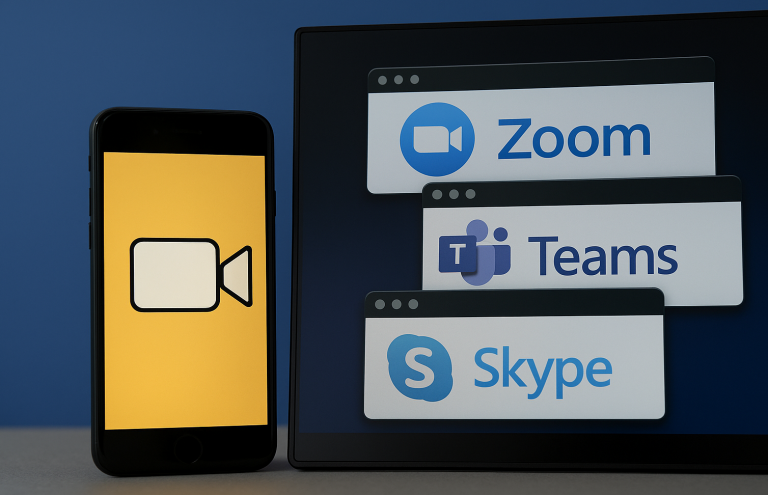
- Using iVCam for Zoom, Teams, and Skype
- How to Set Up iVCam as Your Primary Webcam in Under 5 Minutes